In September I wrote about agentic SaaS through the lens of one platform launch. Since then the bigger story has gotten hard to ignore. The models people use every day can now plan a job, take ten steps to finish it, check their own work, and come back with a result.
That changes the question. It’s no longer “will AI use software?” It’s “which software is ready for it?”
Most tools aren’t. They were built for a person with a mouse. An assistant can read the screen and guess, or it can be handed real buttons with clear names. LinksOnLink is built the second way.
A lot of products have added a chat box. That isn’t what I mean. Here’s the bar I hold LinksOnLink to:
Say you’ve written a guide and want to sell it this week. Here’s how that goes when you work from chat. Each prompt below maps to real tools on our MCP server.
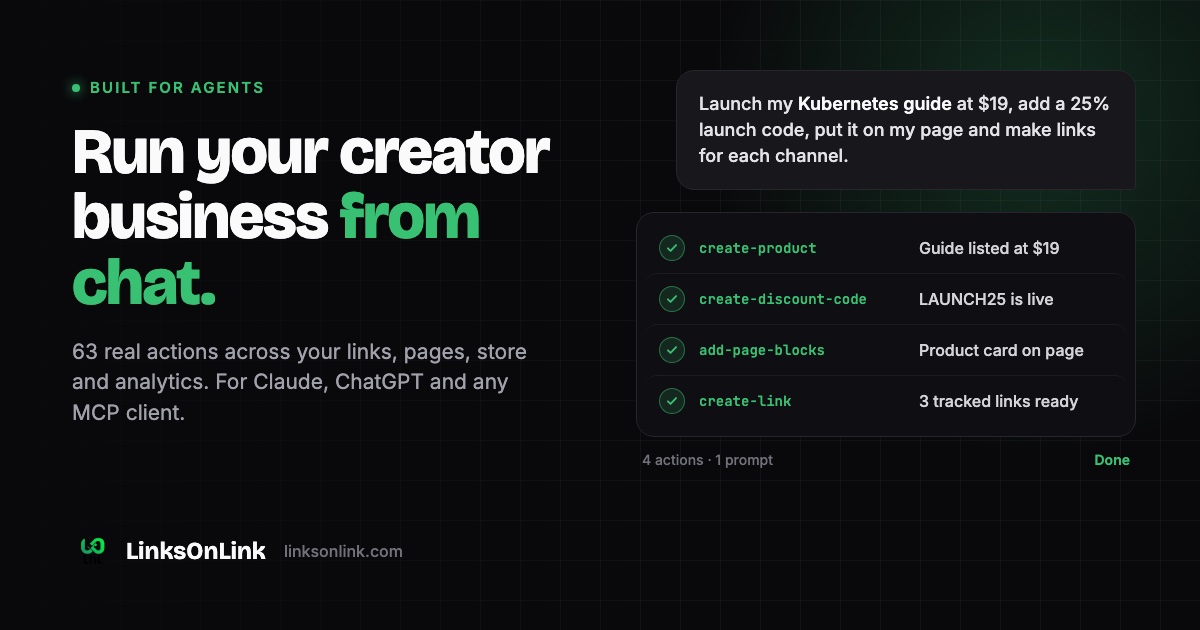
Create a product called “Kubernetes Deployment Guide” for $19, upload this PDF as the download, and write a short description from the first chapter.
The assistant gets an upload address with get-product-file-upload-url, sends your file, then calls create-product with it. Prices are stored exactly, in cents, so $19 means $19. Two honest notes: sending the file needs an assistant that can make web requests, like Claude Code or Cursor, and a paid product needs payouts set up in the dashboard first.
Add a launch code, LAUNCH25, for 25% off. Make it expire Sunday night.
That’s create-discount-code.
Add the guide to my creator page with its cover image. Keep everything else as it is.
The assistant uploads a cover with get-image-upload-url, sets it on the product, and adds a product card to the end of the page with add-page-blocks, so nothing else moves. If you’d rather start fresh, build-page builds a whole page from a brief, styles it, and finds a matching photo from Unsplash in one step.
Make tracked links for the launch: one for my newsletter, one for Instagram, one for YouTube.
create-utm-campaign and create-link give you short links that each carry the right source tag.
Then, on Friday:
How’s the launch going? Which channel sold the most, and did anyone ask a question through my page?
get-sales-summary, get-sales-by-source, and list-page-submissions give you sales by channel and any questions people sent through your page, in a couple of paragraphs, without opening a single dashboard tab.
That’s a launch done in one conversation. Every one of those tools is live today.
The MCP server has 63 tools today, covering the whole business, not just links:
| Area | Tools | What an assistant can do |
|---|---|---|
| Pages | 13 | Build pages from a brief, add blocks, change themes, read form submissions |
| Links | 7 | Create, update, move, and clean up short links in bulk |
| Courses | 7 | Create courses, upload lesson files, see who’s enrolled |
| Collections | 5 | Organise links into groups |
| Products | 5 | Create and update digital products, upload the files buyers receive |
| Account | 4 | Get a one-call snapshot of your account, profile, workspace, and domains |
| Bookings | 4 | Set up paid sessions and list who’s booked |
| Discount codes | 4 | Create, update, and remove codes |
| Public catalog | 4 | Search public creator pages and digital products |
| Analytics | 3 | Pull overall, per-link, and per-page numbers |
| Sales | 3 | Summarise revenue, break it down by source, list orders |
| UTM campaigns | 3 | Create and manage campaign tags |
| Images | 1 | Get an upload address for covers and page images |
On top of the tools, the server offers ready-made prompts (analyze-link-performance, create-campaign-links, optimize-bio-page) and read-only resources like your recent links and analytics summary, so an assistant has useful context before you’ve typed anything specific.
Most of this post is about your assistant working for you. There’s a second side that I find just as interesting: someone else’s assistant finding you.
The public catalog tools, search-creator-pages and search-digital-products, let a connected assistant search public LinksOnLink creator pages and the products listed on them. Ask for a Kubernetes guide, and it can come back with your product, its price, and a link to your page.
Some things are always left out. Password-protected pages, age-restricted pages, pages we’ve disabled, and inactive products never show up in catalog results. Right now, search only works for assistants connected to a LinksOnLink account with an active plan or trial.
The practical takeaway is simple: write clearly for people, and assistants will find you too. A product titled “Kubernetes Deployment Guide” with a description that says what’s inside will be found. One titled “New thing!!” won’t.
Letting software act on your behalf only works if you can trust it. Here’s how the safety side works:
links:read can’t create or delete anything, because the write tools are never registered for it.MCP is the friendliest way in, but it isn’t the only one. If you’re building your own agent or workflow:
Models are now good at working out what you want. The hard part is access: an assistant that understands you is still stuck if your tools won’t let it act.
That’s why I build LinksOnLink with agents in mind. When we ship a feature, giving assistants a way to use it is part of the job, which is how courses, bookings, discount codes, and sales reports all ended up with tools of their own. And as the models get better, they get more out of the same tools: better plans, fewer wrong turns, more done per request.
https://api.lnl.sh/mcp).MCP is included on every plan, starting with Creator at $6/mo. If you’re new, start a 14-day trial and let your assistant set up your first page.
The dashboard isn’t going anywhere. It’s still the best place to see things and fine-tune them. But for “do these twelve things” or “how did this week go,” the fastest interface is the assistant you already have open.
Your discount will be automatically applied when you purchase a paid plan.
View plans